"Sir, you are now writing instructions the CPU executes literally. I have configured the registers; the typos are your responsibility." — J.A.R.V.I.S. (probably)
Why this guide exists
NASM-on-Windows-via-CLion is one of those "lecturer's slides make it look easy" stacks that breaks the moment you actually try it. MinGW doesn't speak ELF, the syntax-highlighting plugin landscape is a graveyard, and CLion's debugger flat-out refuses to set breakpoints in .asm files until you sweet-talk it into recognizing the extension. None of this is documented in one place.
This guide walks through the four pieces:
- Verifying (or creating) a NASM-friendly WSL toolchain in CLion.
- Teaching CLion that
.asmand.nasmare debuggable assembly files. - Setting up file-and-code templates for both 32-bit and 64-bit projects.
- Making the debugger actually show registers.
Scope: this is the pure-ASM flavor — programs built entirely from
.asmfiles that talk to the kernel directly via syscalls. If you want C ↔ NASM interop instead (calling NASM functions from C, or calling libc from your assembly), it's a one-line change: drop-nostdlibfrom thetarget_link_optionsline in the CMakeLists template. CMake will then pull in libc and the C runtime, giving youprintf,malloc, etc., and you'll follow the System V calling convention for cross-language calls.
Prerequisites
- A working CLion + WSL setup — see
clion-wsl-setup.md. Everything below assumes WSL is already wired into CLion. - Inside WSL, install NASM and the 32-bit GCC support library:
// bash
sudo apt install nasm gcc-multilibnasmis the assembler;gcc-multiliblets you link 32-bit ELF binaries on a 64-bit Ubuntu host. Skipgcc-multiliband the x32 template below silently fails at link time with cryptic errors about missing 32-bit crt files. - NASM Assembly Language plugin by Aidan Khoury — install from inside CLion (Settings → Plugins → Marketplace → search "NASM Assembly Language"). The plugin's marketplace page is at https://plugins.jetbrains.com/plugin/9759-nasm-assembly-language.
⚠ Attention when adding "Enhanced NASM Assembly Support" plugin by
aahron— it consistently crashes CLion 2026.1.1 in my testing. The Aidan Khoury plugin is the one you need at minimum.
Step 1 — Toolchain
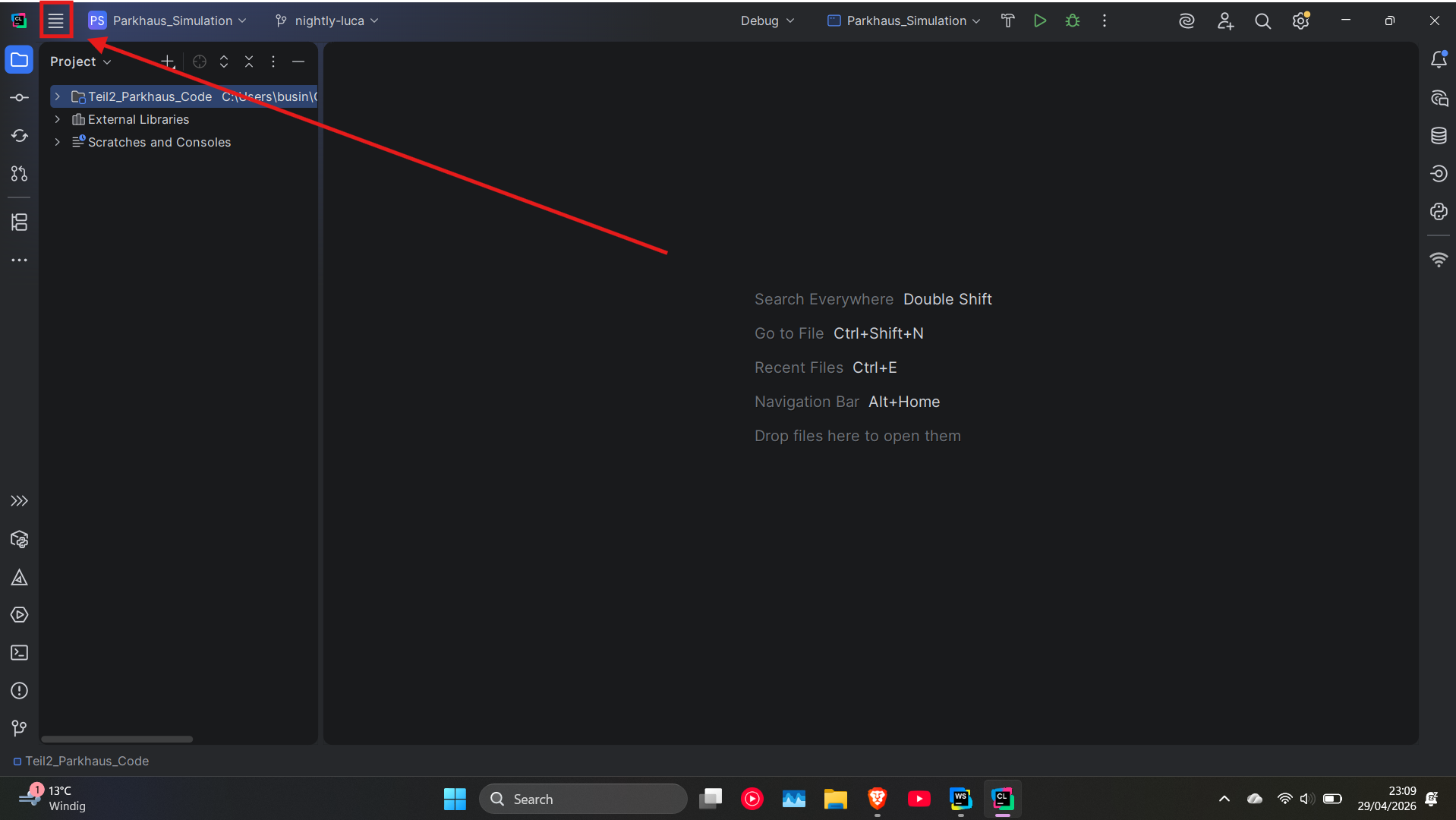
Open CLion settings: ☰ menu (top-left) → Settings, or Ctrl + Alt + S.
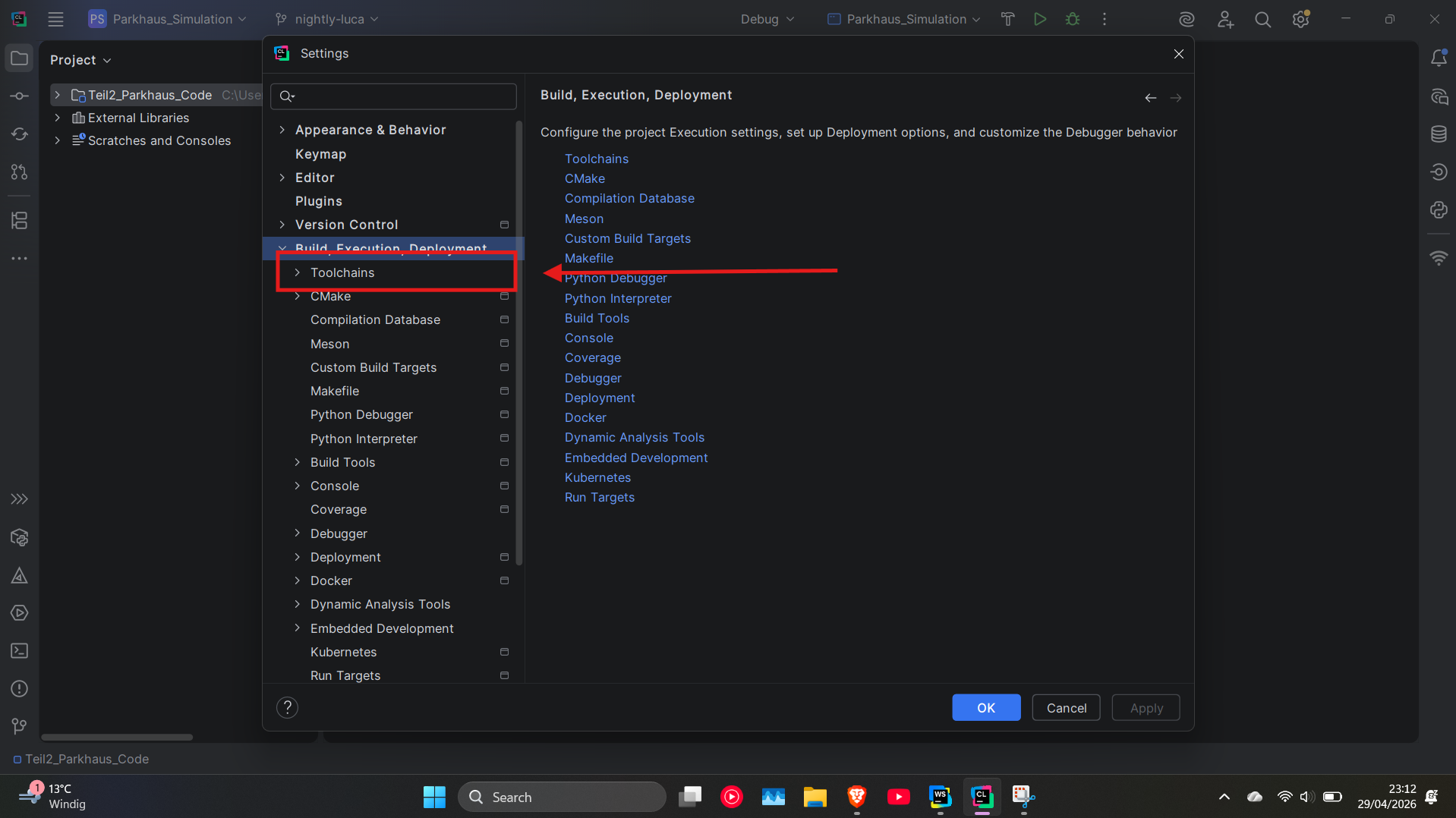
Navigate to Build, Execution, Deployment → Toolchains.
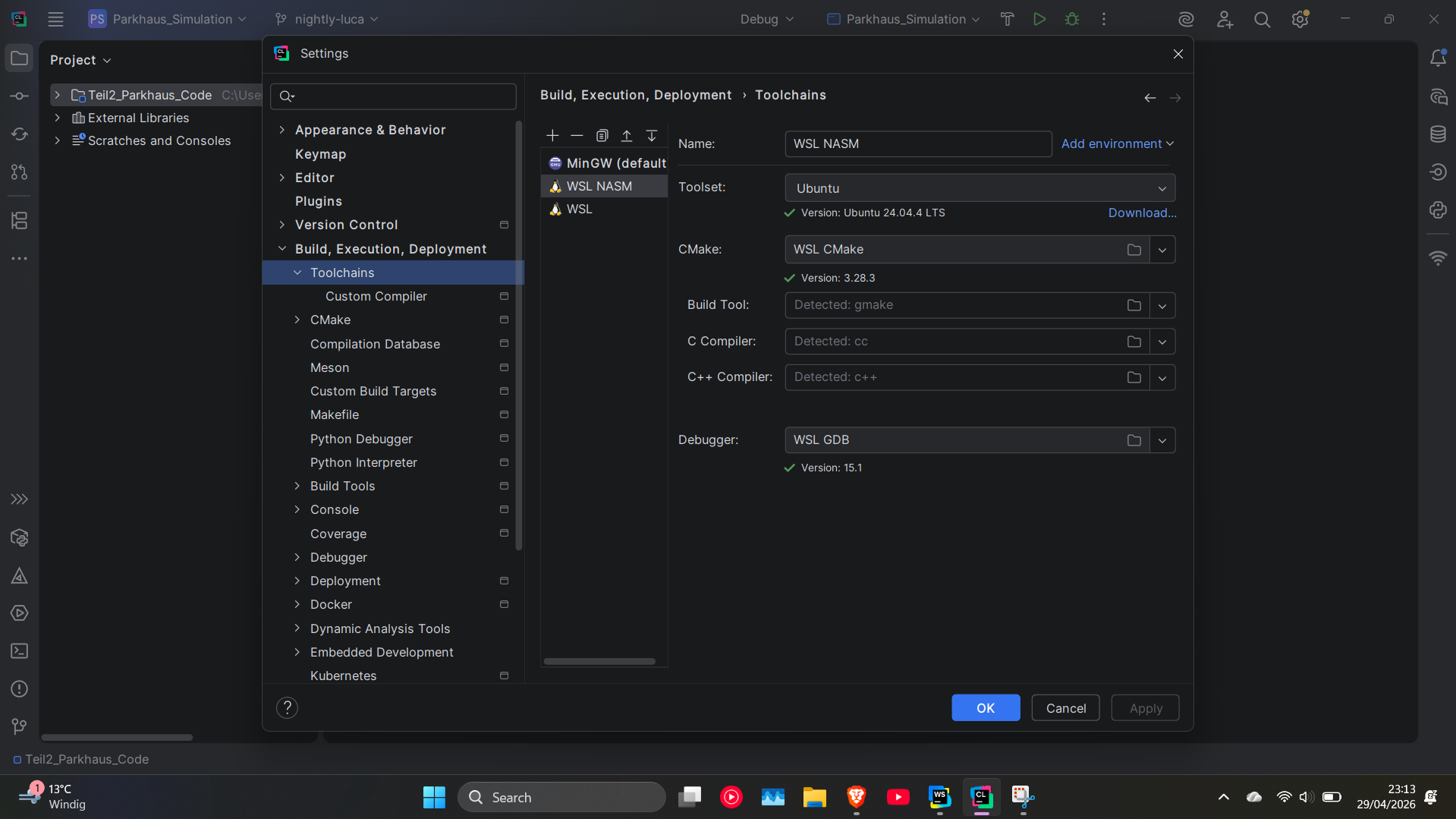
Two paths from here:
a) Easy path — verify your existing WSL toolchain is listed. If it is and you don't need NASM-specific build flags, you're done with the toolchain step.
b) Custom path — create a dedicated NASM WSL toolchain (useful if you want to pin custom build/link commands without polluting your main WSL toolchain). Click +, pick WSL, and rename it.
CMake profile (per-project toolchain)
If you'd rather not make WSL the global default, attach it on a per-project basis through a CMake profile.
Settings → Build, Execution, Deployment → CMake. Click + to add a new profile.
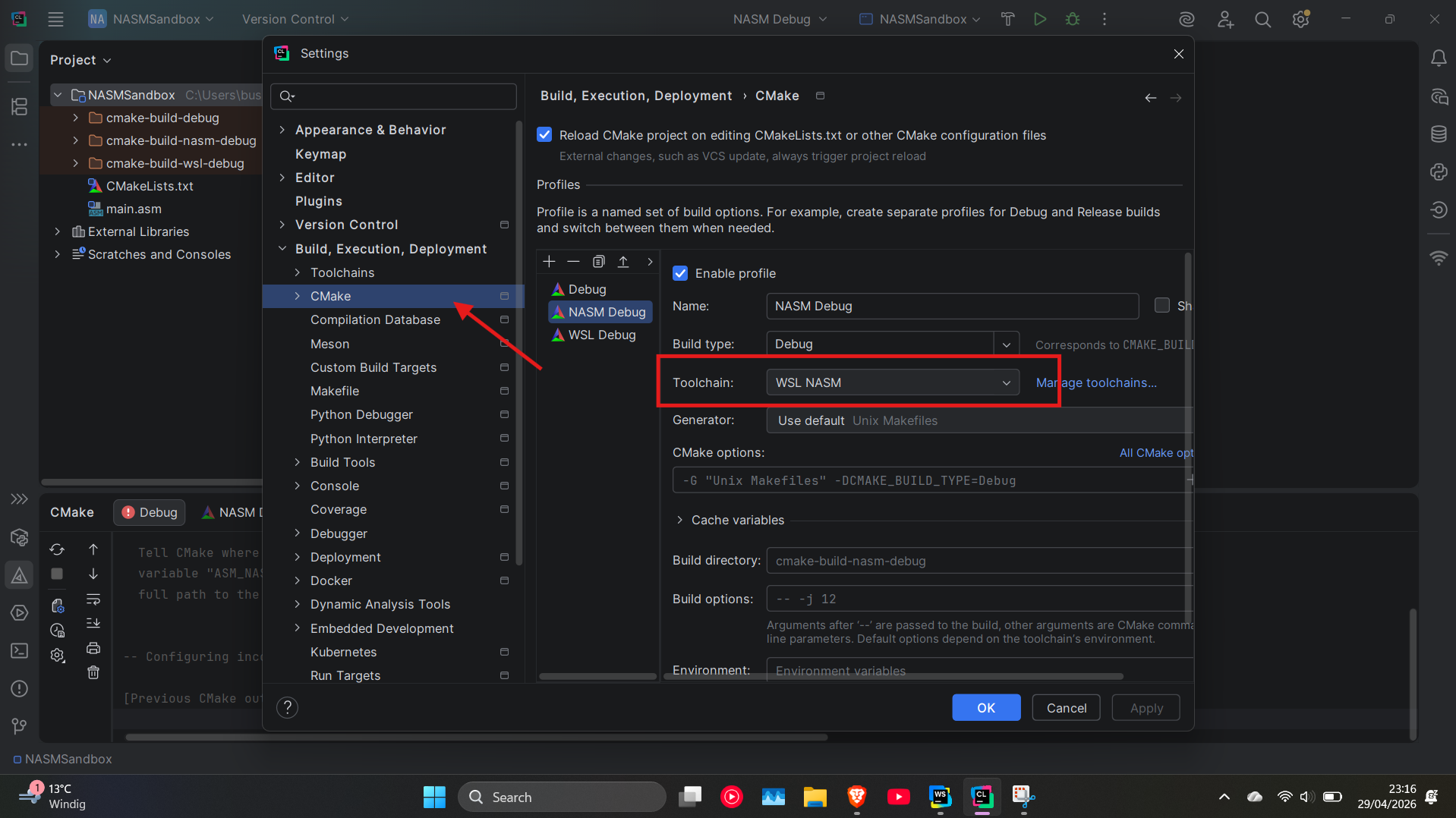
- Toolchain: select your
NASM WSL(or plainWSL). - CMake options: leave blank for now — flag tweaks for Release/Debug live here.
Apply.
Step 2 — Teach CLion that .asm is debuggable assembly
By default CLion treats .asm and .nasm as plain text, which means the debugger cannot set breakpoints in them. Fix that.
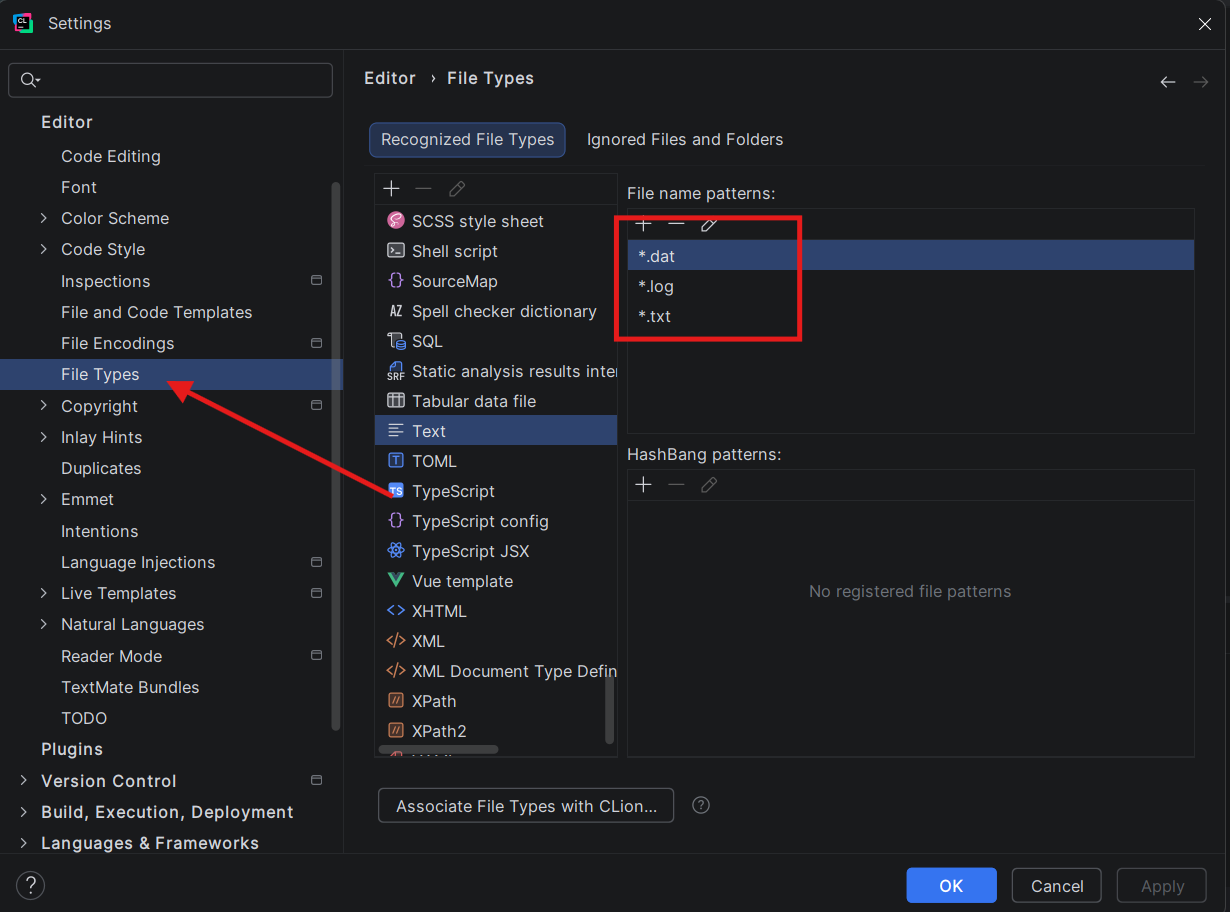
Settings → Editor → File Types.
2.1. Scroll to Text in the recognized-types list. If *.asm or *.nasm are listed there, remove them.
2.2. Scroll to Assembly Language File and add both extensions: *.asm and *.nasm. If CLion warns about a conflict, accept the override.
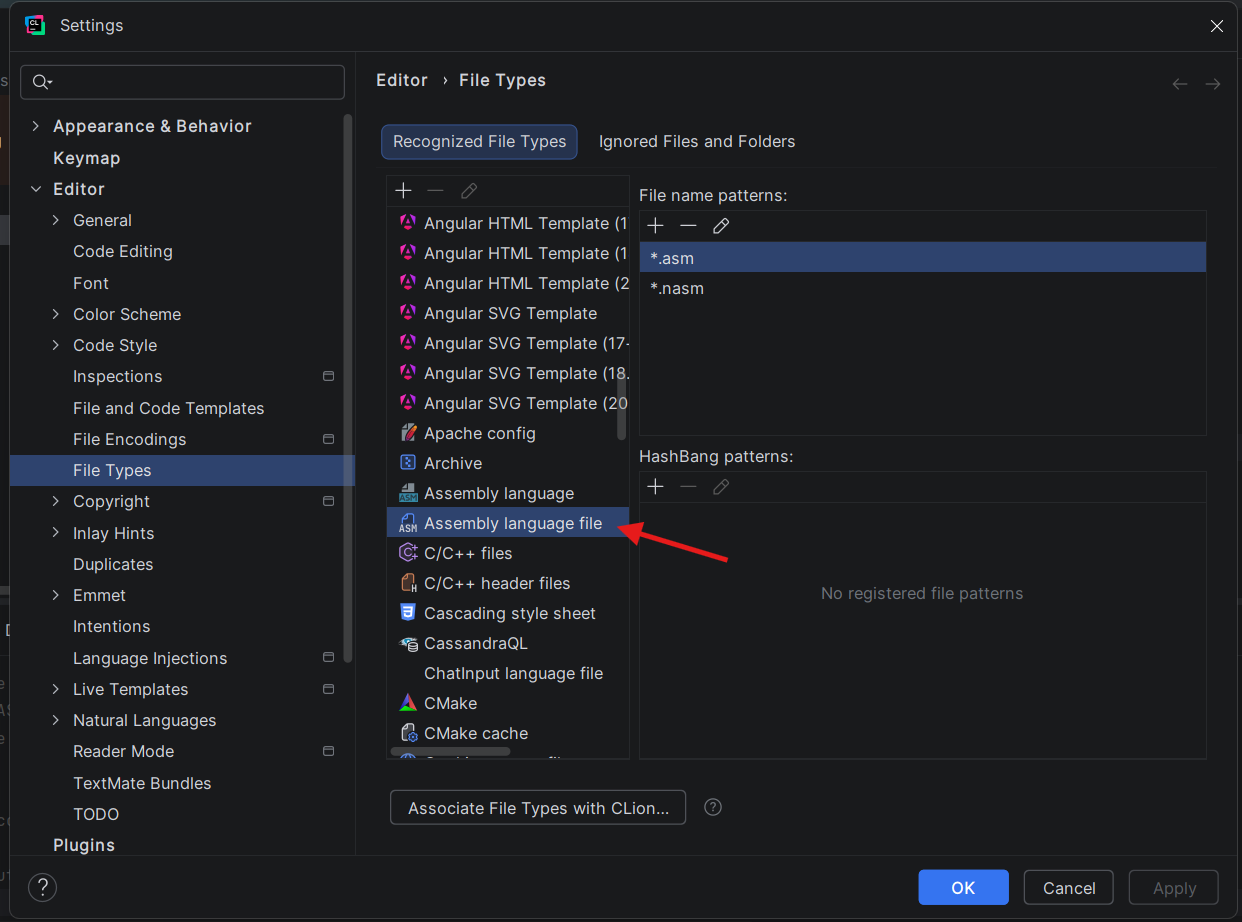
Skip this step and you'll be stuck setting breakpoints with
int3instructions inline in your assembly. Doable, but miserable.
Step 3 — File and code templates
Set these up once and you'll never copy-paste boilerplate again. We'll create four templates total: a CMakeLists for x32, one for x64, and a main.asm for each.
Settings → Editor → File and Code Templates. Make sure the Files tab is selected.
3.1 — CMakeLists templates
Click + to create a new template.
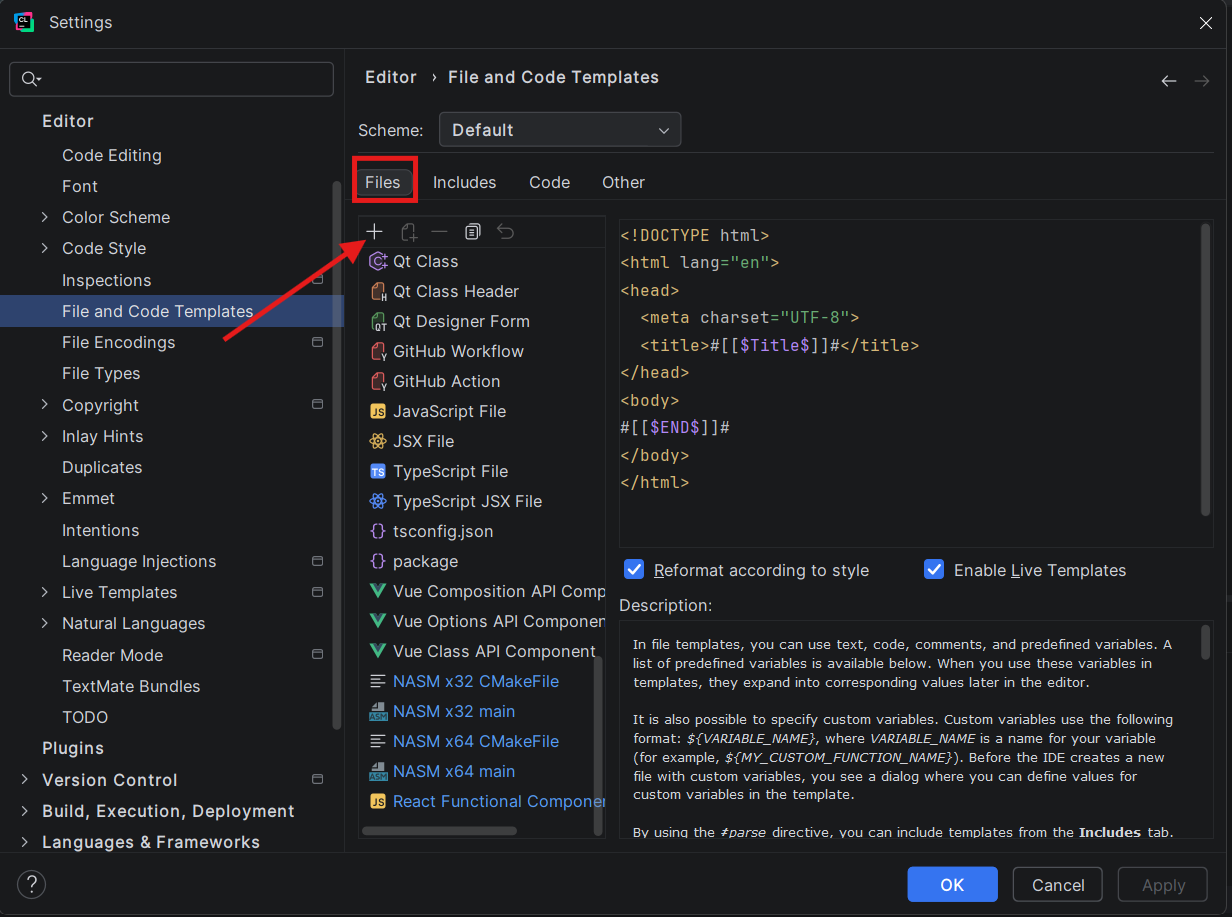
Fill in:
- Name:
NASM 32 CMakeFile(orNASM 64 CMakeFile). - Extension:
txt. - File name:
CMakeLists.
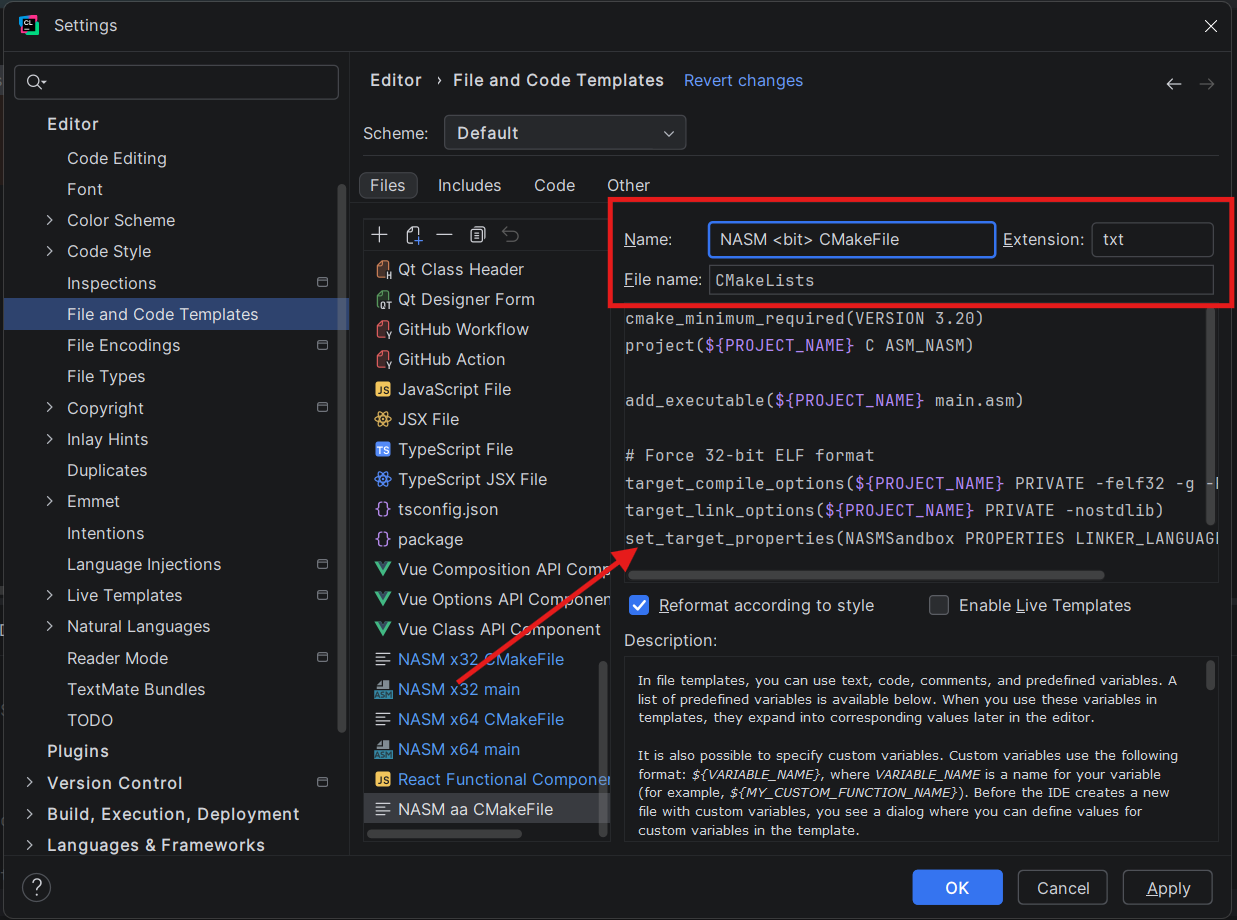
Paste the matching body:
32-bit:
cmake_minimum_required(VERSION 3.20)
project(${PROJECT_NAME} C ASM_NASM)

add_executable(${PROJECT_NAME} main.asm)

# Force 32-bit ELF format
target_compile_options(${PROJECT_NAME} PRIVATE -felf32 -g -Fdwarf)
target_link_options(${PROJECT_NAME} PRIVATE -nostdlib)
set_target_properties(${PROJECT_NAME} PROPERTIES LINKER_LANGUAGE C)
64-bit:
cmake_minimum_required(VERSION 3.20)
project(${PROJECT_NAME} C ASM_NASM)

add_executable(${PROJECT_NAME} main.asm)

target_compile_options(${PROJECT_NAME} PRIVATE -felf64 -g -Fdwarf)

# Tell the GCC linker not to link standard C libraries
target_link_options(${PROJECT_NAME} PRIVATE -nostdlib)
set_target_properties(${PROJECT_NAME} PROPERTIES LINKER_LANGUAGE C)
Both templates use ${PROJECT_NAME} throughout — that's an IntelliJ template variable that resolves to the new project's name at instantiation time. Hard-code a name only if you want every NASM project of yours to produce a binary called the same thing.
▶What does each line actually do? (click to expand)
| Line | What it does |
|---|---|
cmake_minimum_required(VERSION 3.20) | Pins the minimum CMake version. ASM_NASM has been a built-in CMake language for far longer than 3.20, but pinning here keeps per-target options behaving predictably. Lower it only if your build environment forces an older CMake. |
project(${PROJECT_NAME} C ASM_NASM) | Declares the project and enables both C and NASM as build languages. C has to be enabled even though we don't write any — CMake needs the C plumbing later so it can use gcc as the linker driver. The ASM_NASM token is what tells CMake to invoke nasm (rather than GAS / as) when it sees .asm files. |
add_executable(${PROJECT_NAME} main.asm) | A standard executable target. Add more .asm files inside the parentheses if you split your program across multiple sources. |
target_compile_options(... -felf32 | -felf64 ...) | NASM's -f flag picks the output object format. elf32 for 32-bit Linux objects, elf64 for 64-bit. Skip this and NASM produces something that won't link on Linux at all. The only line that differs between the 32-bit and 64-bit templates. |
... -g -Fdwarf | -g emits debug info; -Fdwarf selects DWARF as the format. CLion's debugger (gdb under WSL) reads DWARF — without this you'll build fine but won't be able to single-step or watch labels. |
target_link_options(... -nostdlib) | Tells the linker not to pull in libc or the C runtime. We call syscalls directly (int 0x80 / syscall) and define our own _start, so we don't need libc. If libc were linked, its _start from crt1.o would collide with ours and the link would fail. |
set_target_properties(... LINKER_LANGUAGE C) | Forces CMake to use gcc as the linker driver. Without this, CMake would see that the only source is .asm and try to invoke nasm as the linker — which fails, because nasm only assembles. Setting LINKER_LANGUAGE to C makes CMake call gcc, which knows how to drive ld with the right defaults. |
Click Apply between templates.
3.2 — main.asm templates
Create another template:
- Name:
NASM 32 main(orNASM 64 main). - Extension:
asm. - File name:
main.
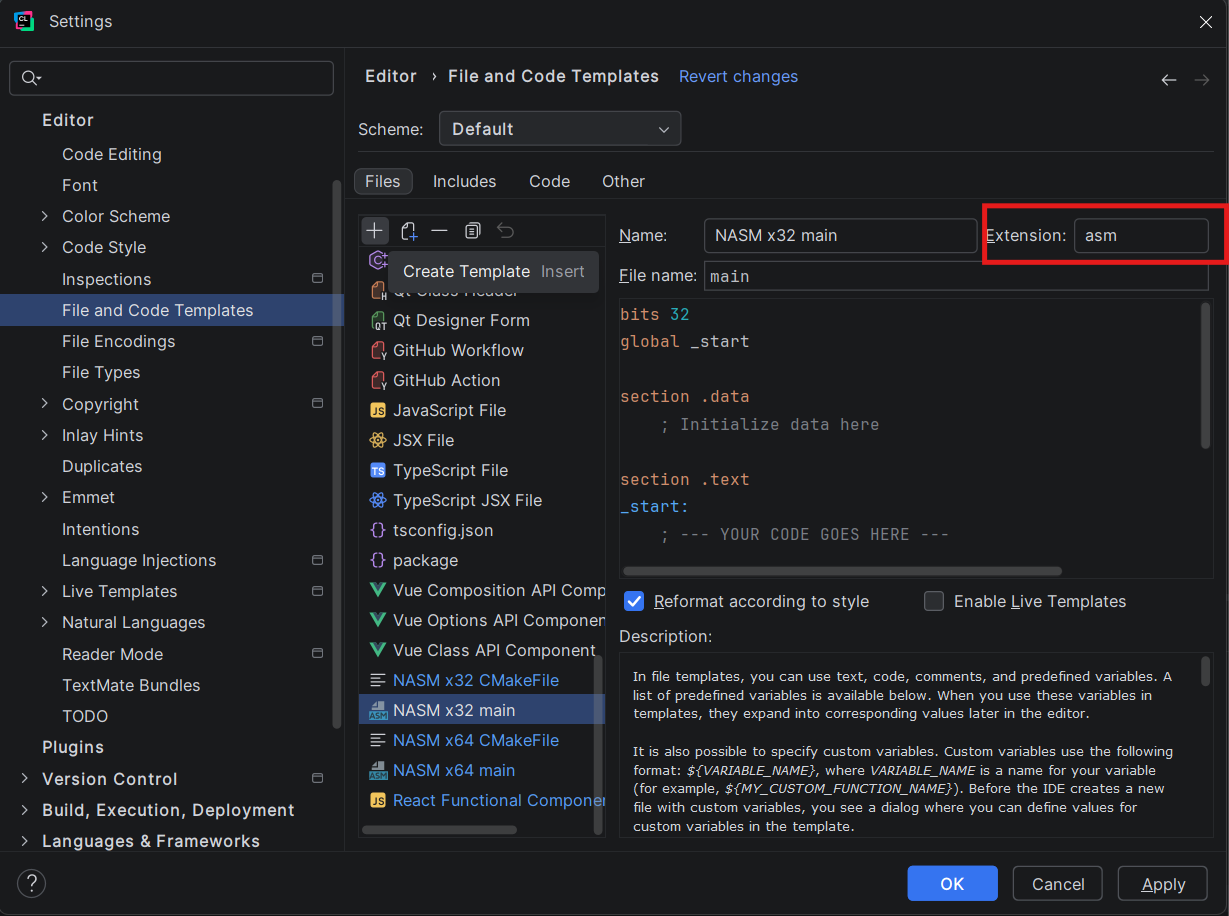
32-bit body:
bits 32
global _start

section .data
; Initialize data here

section .text
_start:
; --- YOUR CODE GOES HERE ---

    ; --- 32-BIT EXIT SYSTEM CALL ---
    mov eax, 1          ; 32-bit syscall number for sys_exit (1, not 60)
    mov ebx, 0          ; exit code 0
    int 0x80            ; 32-bit kernel interrupt (not 'syscall')
64-bit body:
bits 64
global _start

section .data
; Initialize constants and variables here
; Example: msg db "Hello, Assembly!", 10
; Example: msg_len equ $ - msg

section .bss
; Reserve space for uninitialized data here
; Example: buffer resb 64

section .text
_start:
; --- YOUR CODE GOES HERE ---

    ; --- EXIT SYSTEM CALL ---
    ; This cleanly terminates the program
    mov rax, 60         ; syscall number for sys_exit
    mov rdi, 0          ; exit code 0 (success)
    syscall
Apply → OK.
3.3 — Spinning up a new NASM project
CLion's New Project wizard always creates a plain C Executable project — it doesn't know about your shiny new NASM templates yet. So the workflow for any new NASM project is:
-
Create a new C Executable project the normal way.
-
Delete the auto-generated
main.candCMakeLists.txtthat CLion drops in. -
Right-click the project root → New (or use
File → New). Scroll past the built-in entries — yourNASM 32 CMakeFile,NASM 64 CMakeFile,NASM 32 main, andNASM 64 maintemplates sit at the bottom of the list.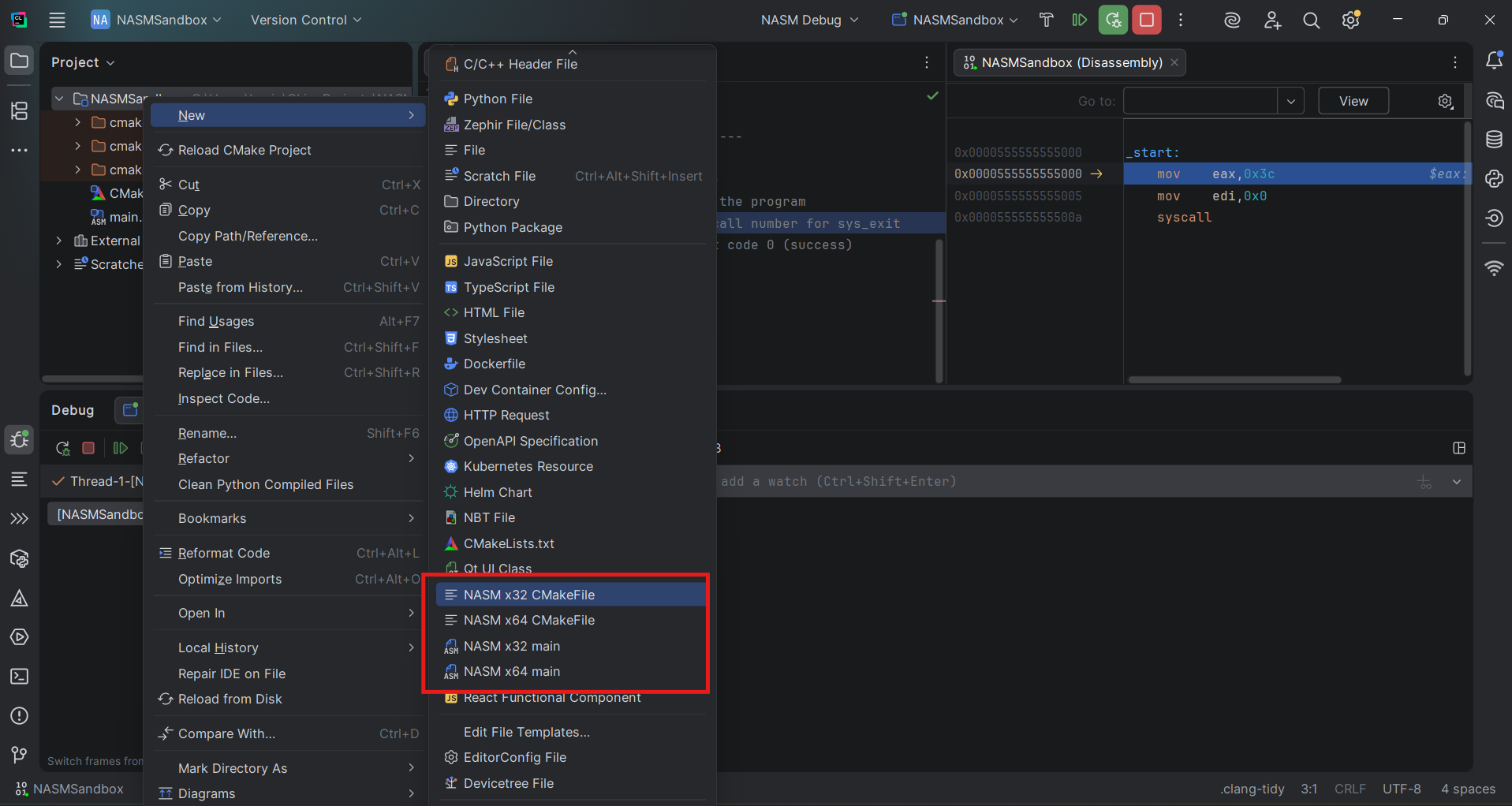
Custom NASM templates listed at the bottom of the New file menu -
Pick the matching pair (e.g.
NASM 64 CMakeFile+NASM 64 main). CLion produces a clean, properly-configured project ready to build.
Day-to-day notes
- Highlighting isn't perfect. The Aidan Khoury plugin is the best of the bunch but expect occasional misses on instruction-set extensions and macro-heavy code.
- Pick the right CMake profile before hitting Run — the dropdown to the left of the Play button is how you switch between an
x32andx64profile (or anything else you set up). - More complex Release/Debug flag setups belong in the CMake profile's CMake options field (Step 1), not in the file template. Keeps the template reusable.
Debugging
If you set up file types per Step 2, debugging works almost exactly like C/C++: click the gutter to set a breakpoint, hit Debug, step through.
If you skipped Step 2: drop int3 instructions into your .asm source — they trigger as breakpoints when running under the debugger.
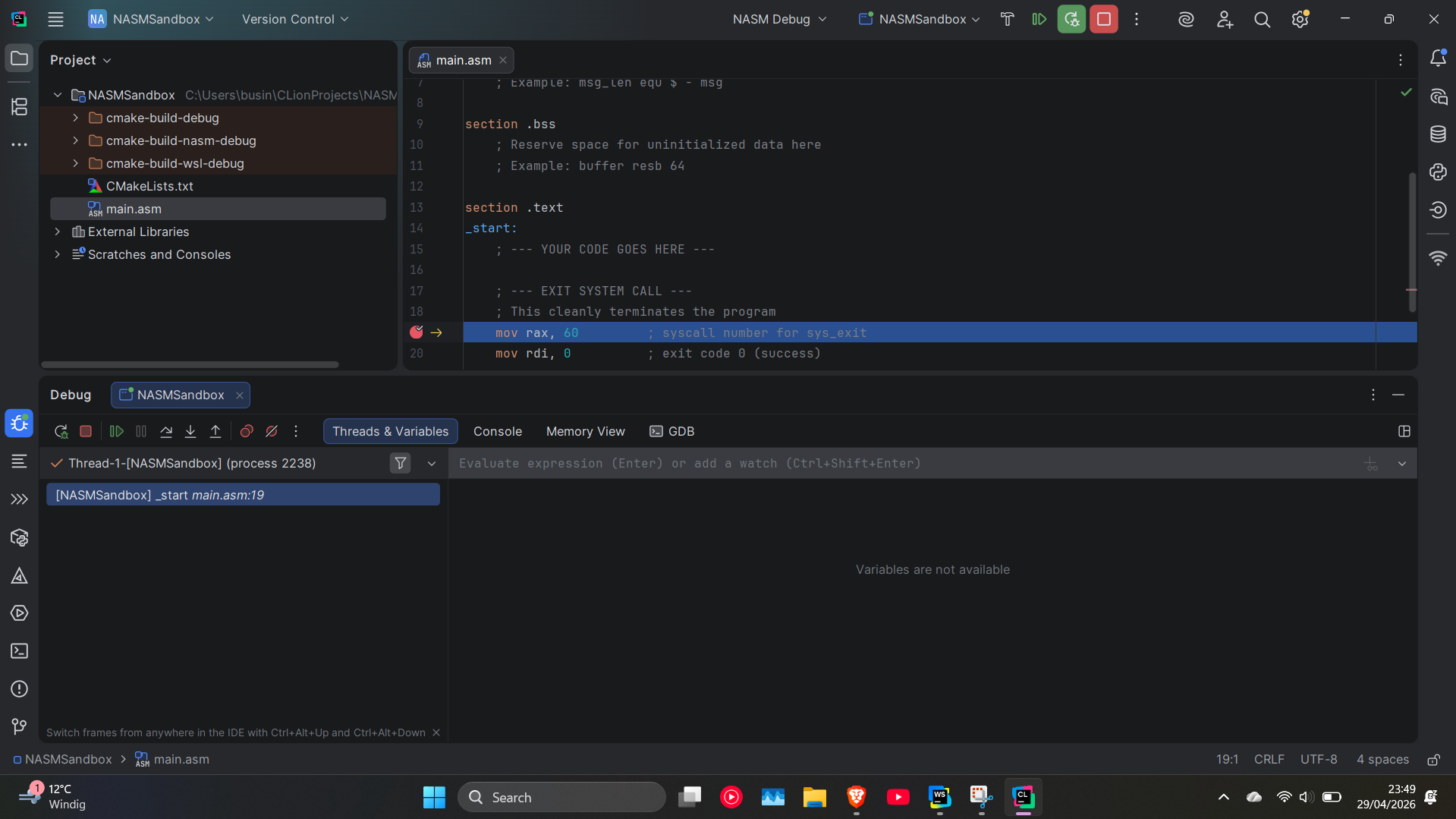
Watching registers
CLion's default debug view doesn't show CPU registers — you have to drop into the disassembly view first.
1. Right-click the call stack in the Debug pane → Disassemble.
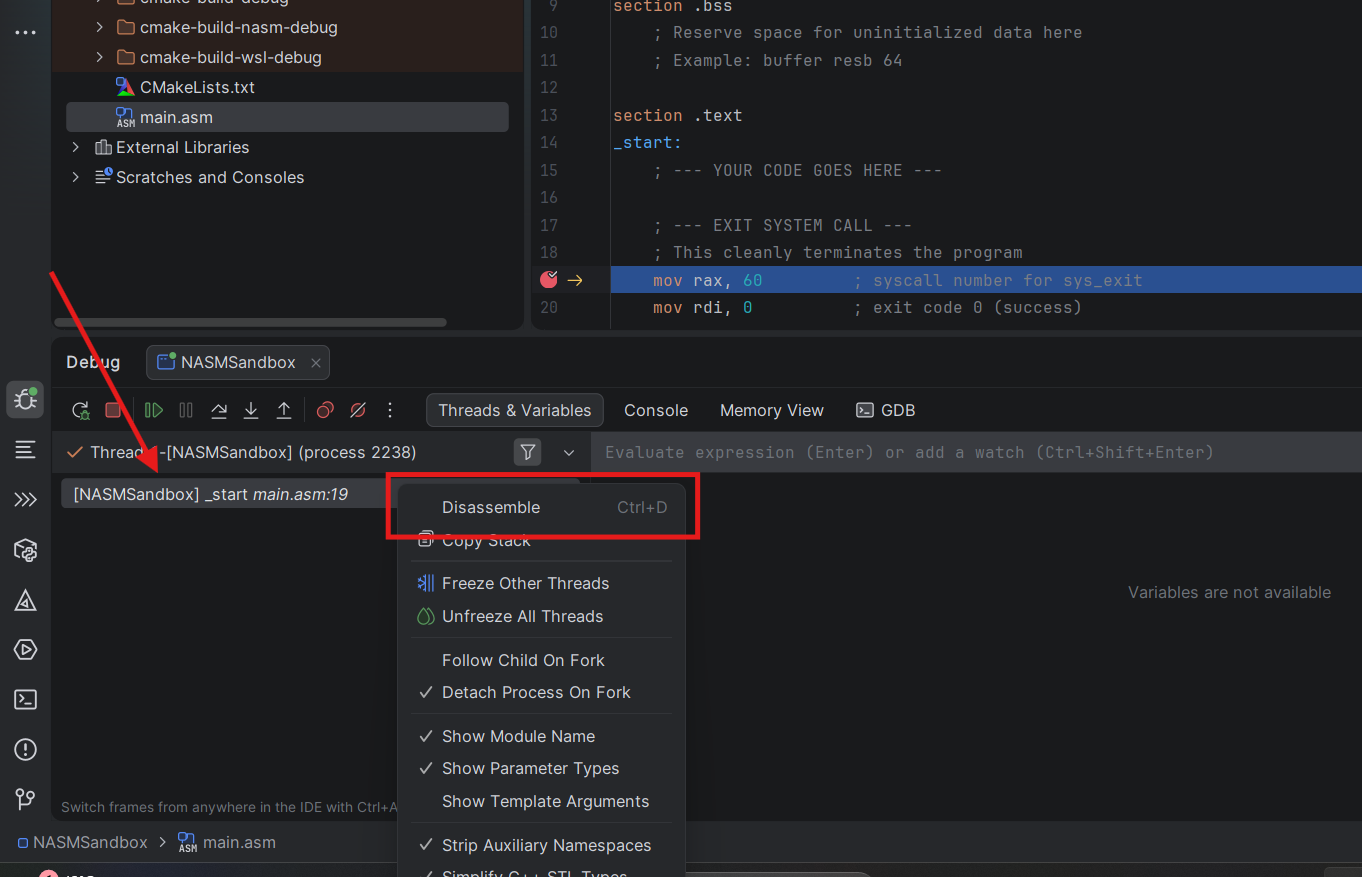
2. The disassembly view opens.
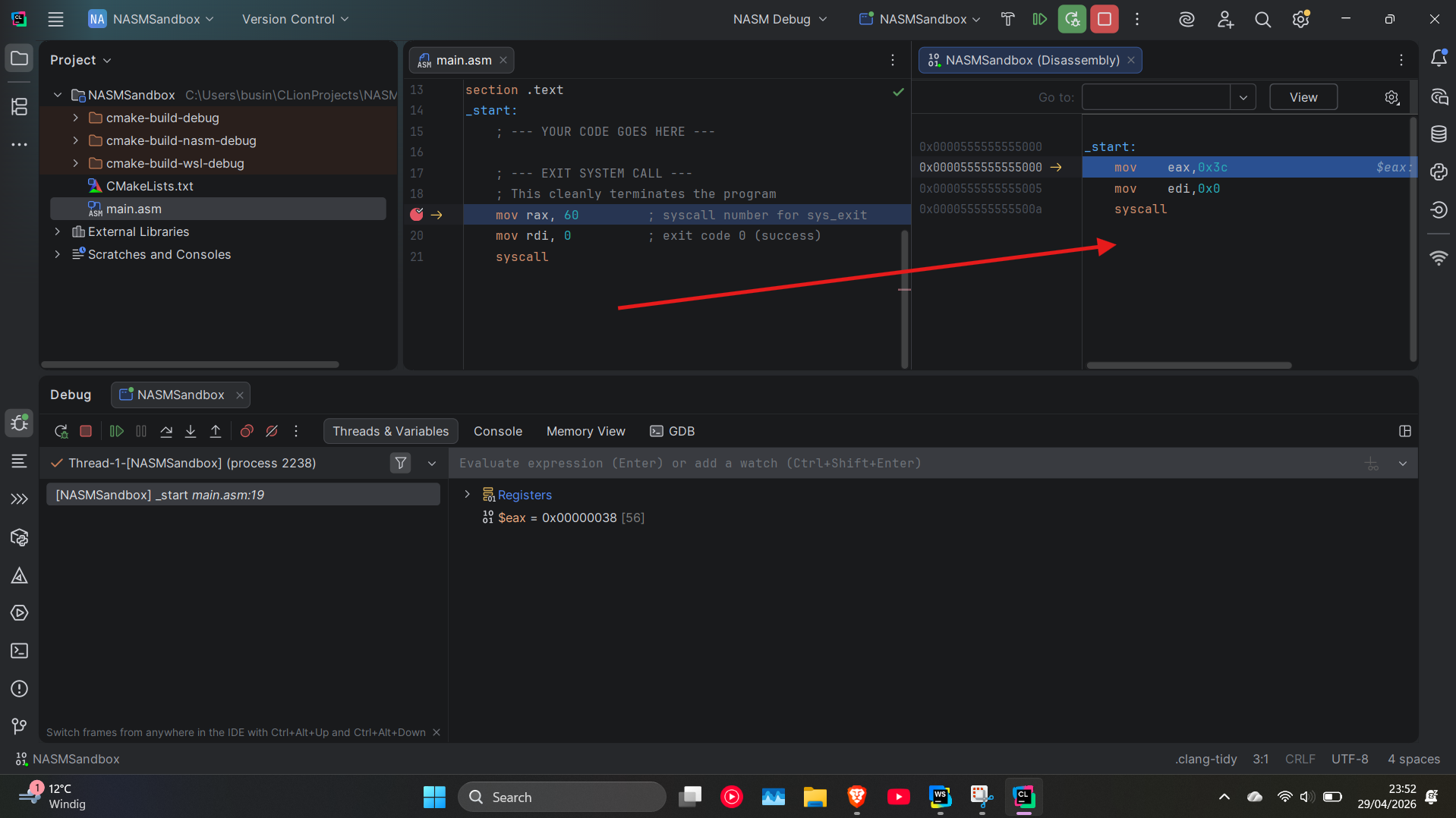
3. Switch to the Threads & Variables tab and right-click in the body.
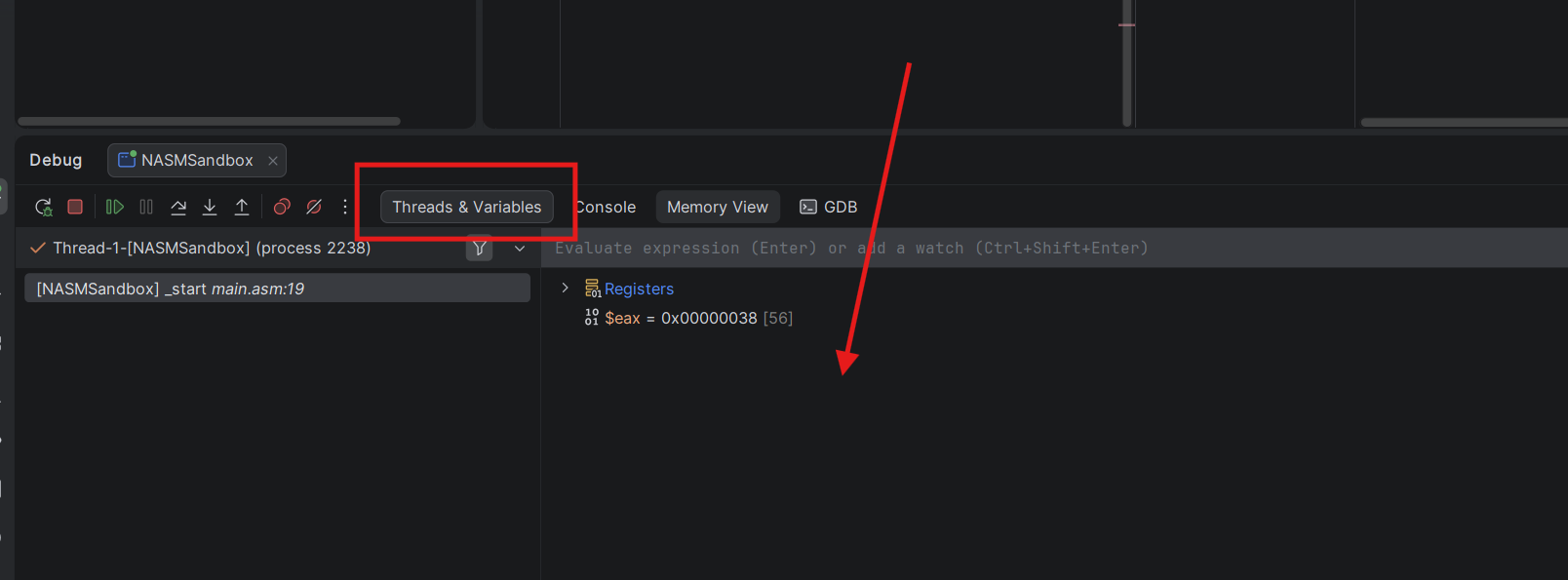
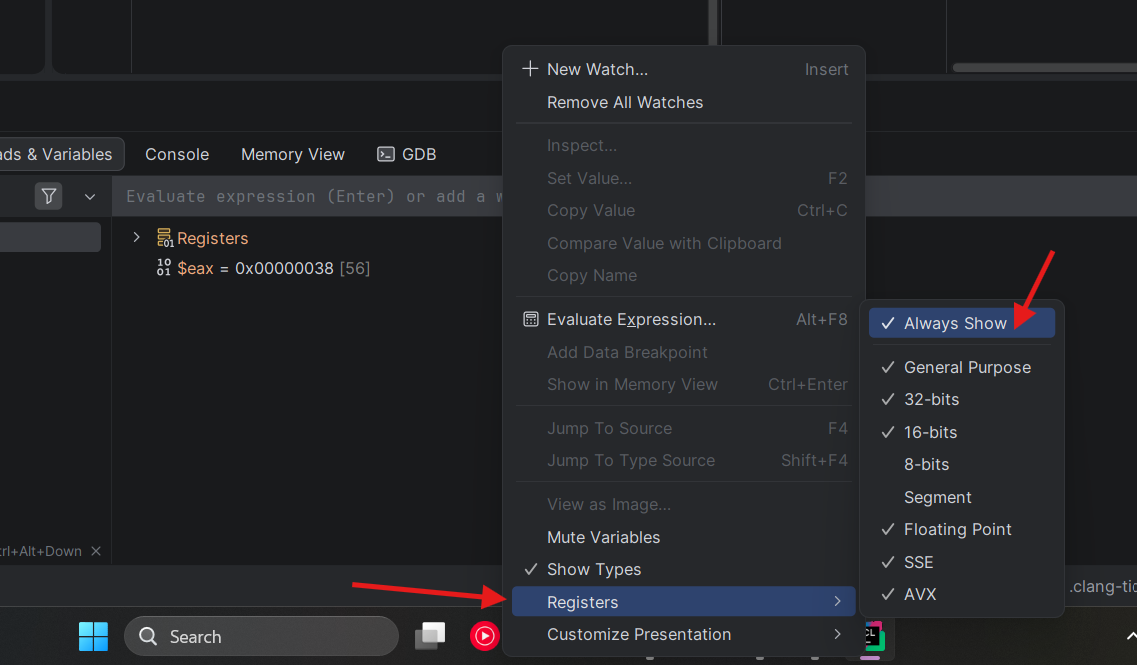
4. Pick Registers → Always show, then tick the register categories you want (general-purpose, segment, FPU, etc.).
Known issues & caveats
Enhanced NASM Assembly Supportplugin byaahroncrashes CLion (verified against CLion 2026.1.1). Use the Aidan Khoury plugin instead.- Skipping Step 2 kills inline breakpoints. Without the
.asmextension being mapped to Assembly Language File, CLion treats your source as plain text and the debugger silently ignores gutter breakpoints. Useint3if you really must skip. gcc-multilibis mandatory for the 32-bit path. Without it,nasmproduces the object file fine but the linker dies on missing 32-bit crt files.- Debugging is a little wonky. Stepping through pure assembly is fine, but unless set to "show always" the debugger will not show CPU registers unless manually "disassembled". Workaround for that: re-trigger the disassembly via the right-click menu.
- Highlighting drifts on newer instruction sets. AVX-512 / SVE / etc. mnemonics aren't always recognized. Code still assembles; the squigglies are cosmetic.
Useful links
NASM itself
- NASM official site — downloads, release notes, and links to everything else.
- NASM documentation — the canonical user manual; chapter 2 covers the command-line flags we use in our CMake template.
- NASM Assembly Language plugin (JetBrains) — the syntax-highlighting plugin we install in the prerequisites.
x86 / x86-64 references
- Intel® 64 and IA-32 Architectures Software Developer's Manual — Volume 2 is the instruction-set reference; Volume 3 covers system programming. Hefty but authoritative.
- System V AMD64 ABI — calling convention, register usage, stack layout. Required reading before writing assembly functions you'll call from C (i.e. once you've dropped
-nostdlibfor the interop flow). - x86 Assembly (Wikibooks) — readable, free, and a far gentler entry point than the Intel SDM.
Linux syscalls
syscalls(2)man page — full list of Linux syscalls plus the per-architecture register conventions for invoking them.